Sign in. It’s quick, free and it’s up to you.
An account is an optional way to support the work we do. Find out more.
Sign in. It’s quick, free and it’s up to you.
An account is an optional way to support the work we do. Find out more.

OF THE MANY improvements that have been provided with smartphones, fingerprint scanning has come in leaps and bounds.
Yet many of you might just settle for the one fingerprint when you can set up a number of them. They can come in handy if you want an easier way to unlock when your phone is on your desk or if you have one hand free.
Setting up more than one print is pretty simple, you just need to know where to look.
iOS
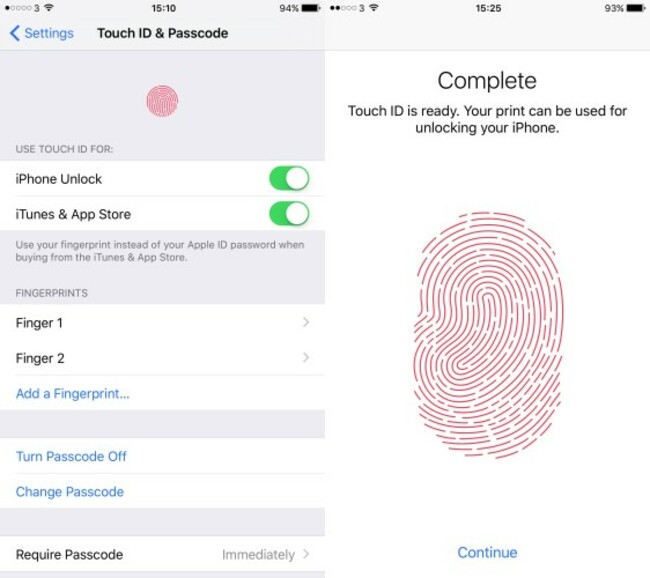
Simply go into Settings > Touch ID & Passcode and enter in your PIN. Going into ‘add a fingerprint’ will bring you through the same setup process as when you first set up your phone.
If you want, you can turn off Touch ID for unlocking your phone or for verifying purchases through iTunes or the App Store.
You can save up to five fingerprints though Touch ID.
Android
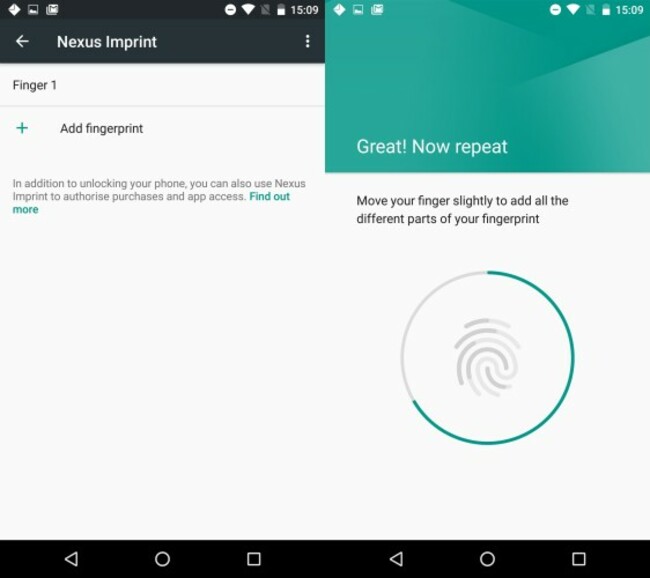
There going to be some differences depending on what device you’re using, but fingerprint scanning is usually found under Security if it doesn’t have its own section.
Android Marshmallow now includes fingerprint scanning as standard and only allows you to set them up. You can decide whether to allow them for app purchases or not, but you will have to turn it on/off in Google Play itself.
Depending on the device you have, the fingerprint limit will vary. Marshmallow allows up to five fingerprints to be saved while Samsung allows up to four.

To embed this post, copy the code below on your site













have your say