Sign in. It’s quick, free and it’s up to you.
An account is an optional way to support the work we do. Find out more.
Sign in. It’s quick, free and it’s up to you.
An account is an optional way to support the work we do. Find out more.
AS HANDY AS our smartphones are, they can be very particular devices.
While that isn’t a problem for most of us, those who are impaired vision, or aren’t able to precisely touch a small screen, can find such devices difficult to use.
Even if you’re not having major troubles, it’s always good to know that each phone has its own features for making life easier.
To find accessibility, simply go into settings, then general and it will be the sixth option from the top.
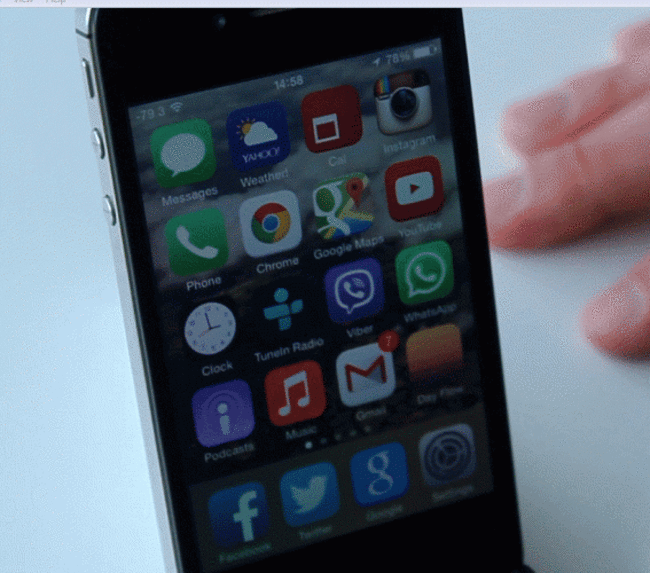
iOS has the greatest range of options available to users, almost too many to list here, but the majority of them are straightforward. Here are the main ones.
Zoom: turning this on will allow you to zoom into any part of the screen by double-tapping with three fingers. Moving around is done with three fingers as well while double-tapping again will return you to normal view.
Reduce Motion: For those who experience motion sickness when opening up an app, turning this on will stop the opening animation that happens when you select an app.
Even if you don’t experience difficulties, it’s actually a handy way of (somewhat) improving battery life and makes opening up apps a little bit faster.
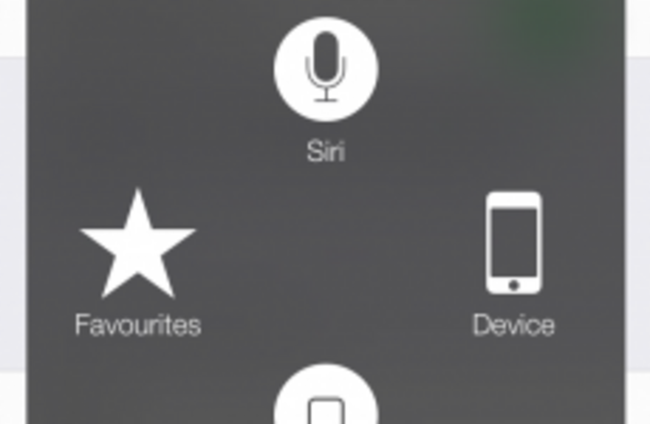
AssistiveTouch: If the home button doesn’t work, AssistiveTouch will activate a home button that will allow you to access the iPhone’s most common features with large icons.
Switch Control: Found directly above AssistiveTouch, custom gestures lets you create your own gestures to perform specific tasks. So you could use the camera to open up your mail anytime you tilt your head to the right (so long as you’re the exact distance away.
Be warned though, once you activate this, all traditional gestures will be replaced with custom versions.
Home-click Speed: Triple clicking the home button will bring up accessibility options like zoom, inverted colours and voiceover, but you may not need them all the time. If you’re having problems opening up the menu on the home screen, you can set it to slow or slowest so you don’t need to rapidly hit the home button.
Accessibility Shortcut: Allows you to select what options appear when you triple-click the home button
Incoming Calls: automatically sets it so that you receive them either by headset or speaker.
Android
Finding accessibility is easier on Android as it’s located at the bottom of the settings menu.
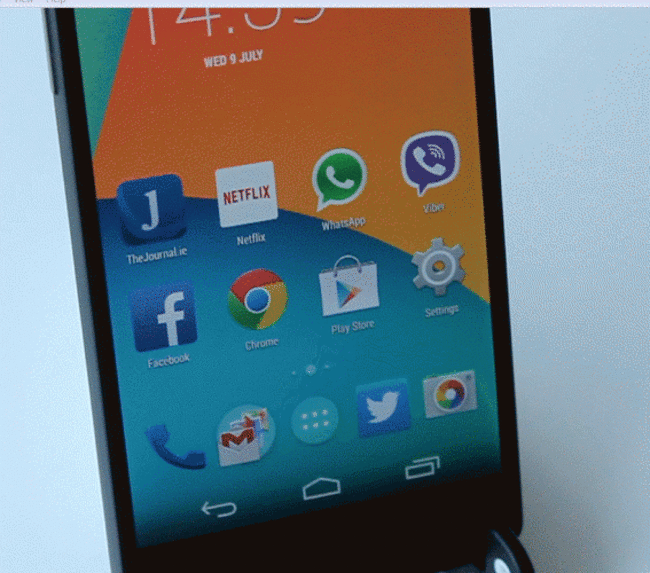
Android’s offering isn’t as comprehensive as the iPhone, but there are still many features that are worth looking at. For one, speaking passwords is a useful feature while using the power button to end calls is also handy.
Also found in settings, but under ‘ease of access.’
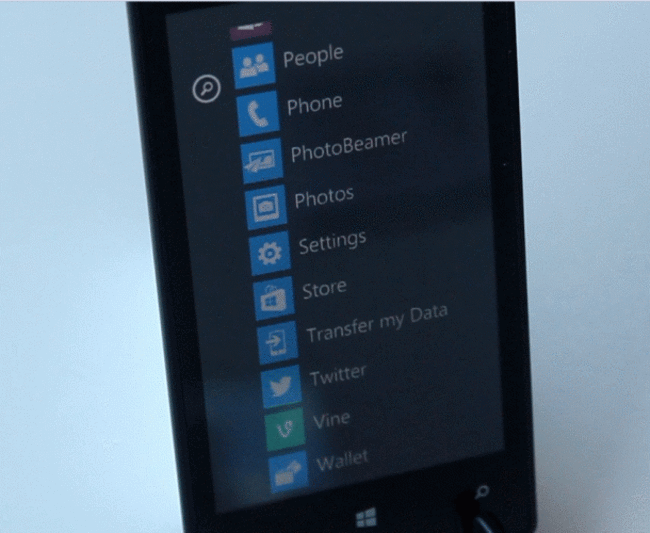
Probably the least detailed of the three, due to certain features being located in other setting menus, the main features you can change here are text size, the contrast of certain features and background images, a screen magnifier and activate compatibility with TTY/TDD devices (Text-Telephone Device/Telecommunications Device for the Deaf).
Windows Phone 8.1, when it is released, will add additional features such as narration and customisation of browser captions.

To embed this post, copy the code below on your site













have your say