Sign in. It’s quick, free and it’s up to you.
An account is an optional way to support the work we do. Find out more.
Sign in. It’s quick, free and it’s up to you.
An account is an optional way to support the work we do. Find out more.

SMARTPHONES ARE INTUITIVE and handy devices, to the point that many of us take using them for granted. While many of us find touchscreen gestures to be second nature, many are still moving from feature phones and getting to grips with numerous features and changes.
With smartphone penetration now at 61%, that’s still 39% of users who have yet to change, mainly the older generation.
If you know someone who is only getting to grips with a smartphone or tablet, or on the off-chance that you might like to refresh your memory, here are the basic gestures you need.
Tap
The most basic smartphone gesture out there. Literally acts as a select option so tap to get into apps, hit keys, open up menus or select options.
Long press
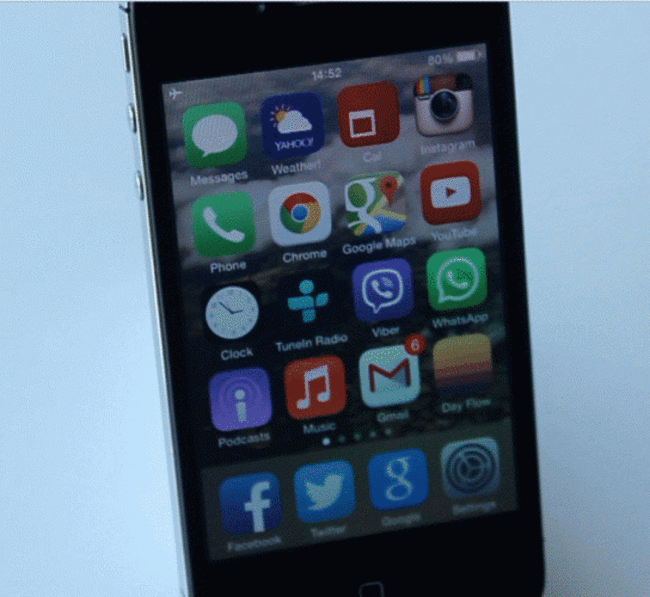
If you want to move apps or widgets around your screen or add them into folders, all you need to do is hold down on one app and you will be able to move any apps on screen around. After that, it’s a matter of dragging them around and placing them in a different section.
Also, for your keyboard, holding down on a letter or number will bring up additional characters for you to choose. Holding down on a word will highlight it, allowing you to copy, paste or get the definition for a word.
Double tap
If you’re using a maps service, this can be used to zoom in a set distance instead of pinching (see further below) or resize a page.
The most common usage of double tap would be the spacebar, doing this will add a full stop and a space after a word. Also, double tapping the shift key will activate cap lock mode.
Scroll
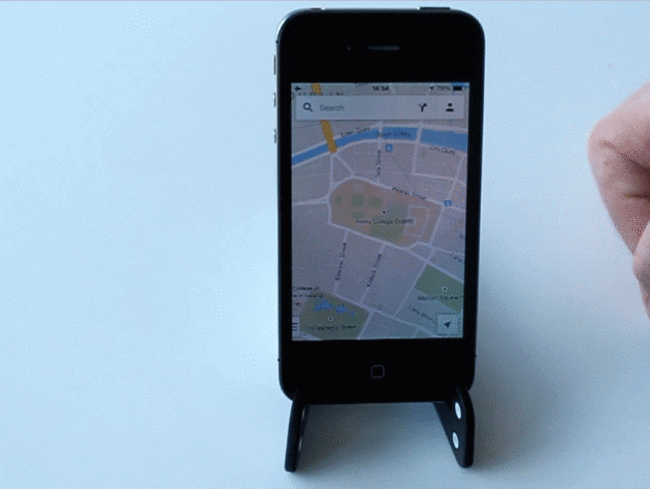
Used when looking at web pages and articles, holding down and moving your finger will move the page up/down a short distance, while flicking it will carry you further.
Swipe
Another common smartphone gesture allowing you to switch between screens in apps, or bring you back a page. The gesture is also used to bring up extra options in messages and email apps.
Swipe from top down
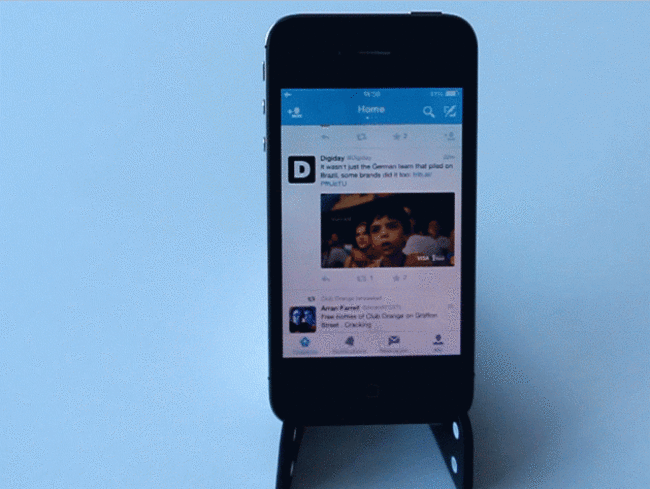
For iPhone and Android, doing this will bring down the notifications screen alerting you to any missed calls, messages or updates from your apps. Will also include other details such as estimated travel time and reminders.
Swipe from bottom up
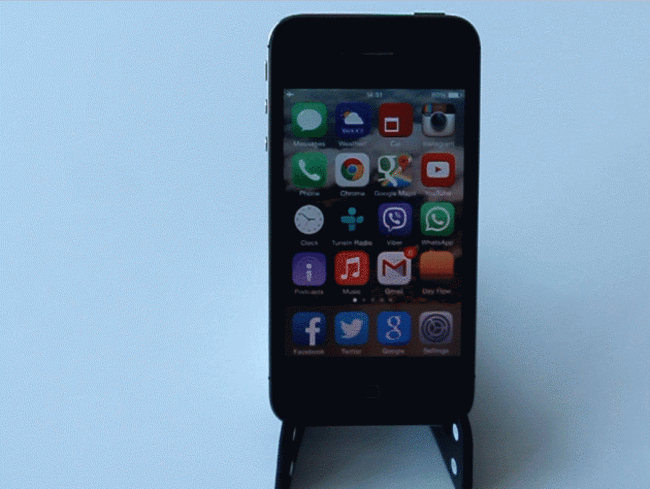
On the lock screen, doing this will unlock the camera. If you’re using an iPhone, swiping up from the middle will bring up shortcuts while doing this on Android brings up Google Now.
Pan
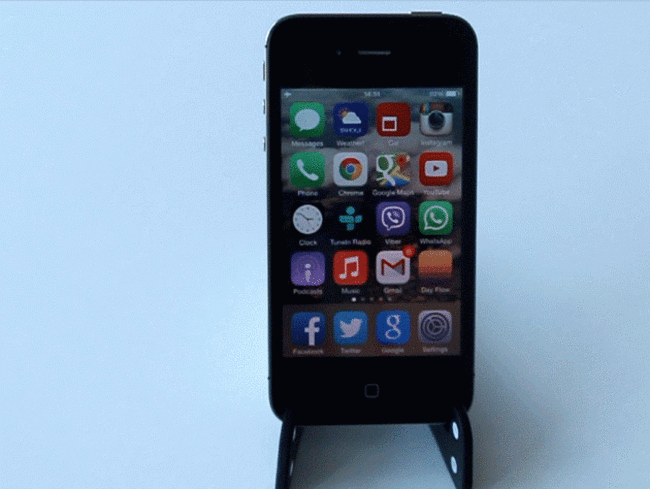
Holding down on a point in the screen and moving your finger around will let you move around the screen. Useful for looking at maps, large images or web pages that don’t seem to fit.
Scroll up/down
Allows you to change the view of a map from top down to a 45 degree angle.
Pinch
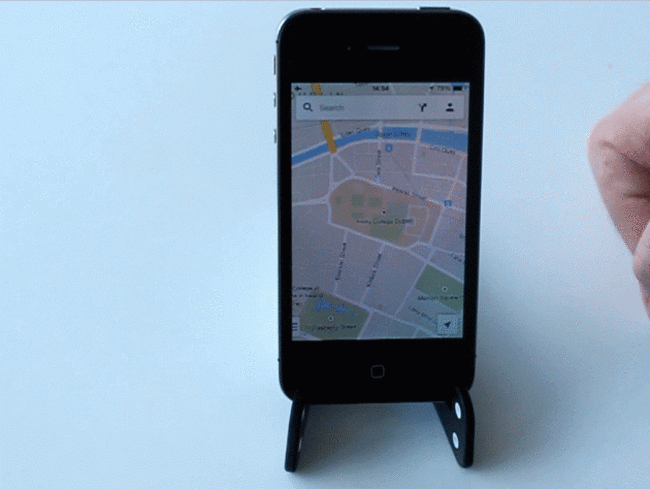
Practically allows you to zoom out of an app or service (eg: maps or web browser page). Also, it’s another way for exiting an image and going back to the gallery page.
Zoom
The opposite motion of the pinch, this allows you to zoom in on an image, map or webpage.
Rotate
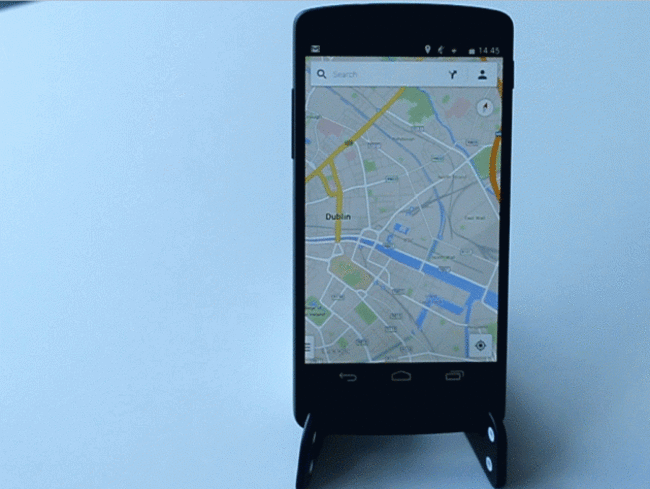
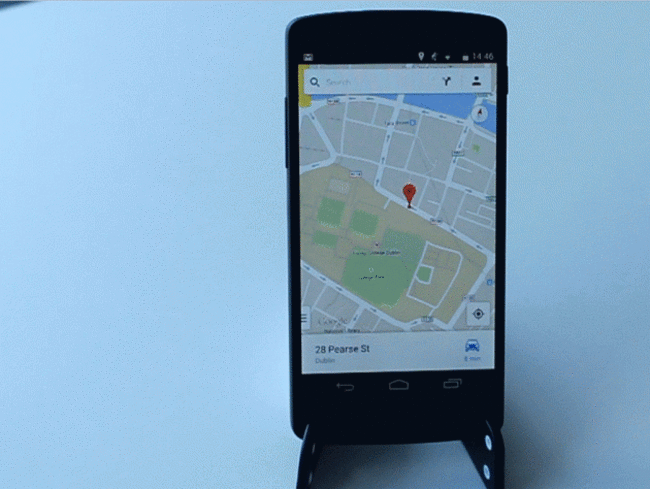
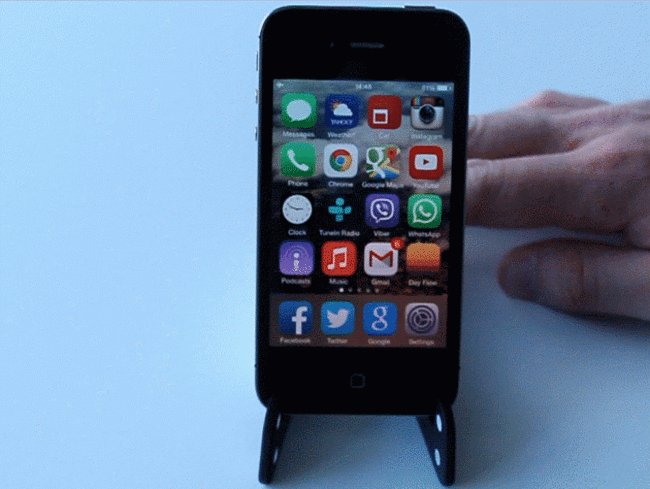
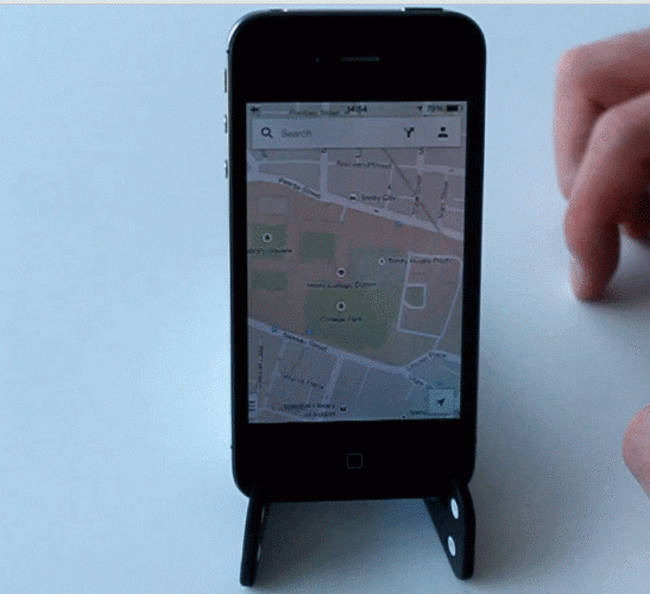
By holding down one finger and moving another, you can rotate a map to get a different view of it (In the example below, the bottom finger is pressed on the screen while the top finger moves around).
Double tap
A setting that must be activated first in settings (through accessibility before you can use it. Its function varies on the smartphone you’re using, but in the case of an iPhone, it allows you to zoom in on the screen.

To embed this post, copy the code below on your site












have your say