Sign in. It’s quick, free and it’s up to you.
An account is an optional way to support the work we do. Find out more.
Sign in. It’s quick, free and it’s up to you.
An account is an optional way to support the work we do. Find out more.
OF ALL THE changes YouTube has made in recent times, probably one that you wouldn’t have noticed until it happened is its insistence on auto-playing videos when you’ve finished.
This now happens outside of playlists with YouTube giving you ten seconds after a video has ended to cancel or allow it to play another video.
This is a little annoying as you might not be interested in the next video, and since it was rolled out quietly, you wouldn’t have realised it was activated until it finally happened.
Yet there’s a simple way to turn it off and it’s easily missable. Depending on what view you have activated, the autoplay function option can be found in the top right-hand corner in default mode. If you’re in theatre mode (like the image below), it’s underneath the bottom left-hand part of the video.
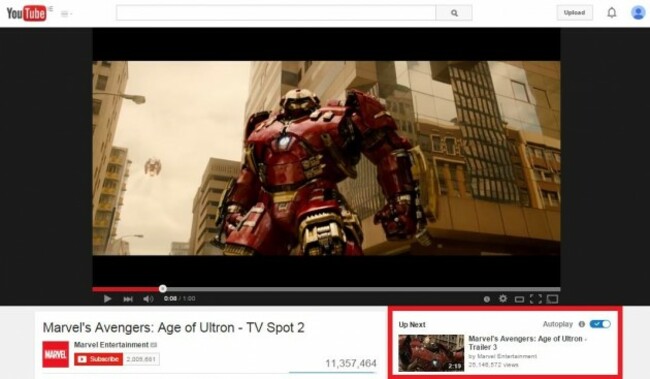
Although if you’re in default mode, you wouldn’t notice it unless you have your window on at full screen as it’s placed where video ads are usually located. If you missed it, it’s likely because you become accustomed to ignoring that section of the site.
The only problem is there’s no way to turn this off indefinitely. Every time you start a new session on YouTube (restart your computer or clear your browser of cookies), it will reset and you have to do it all over again, but at least now, you know where to look.

To embed this post, copy the code below on your site















have your say