Sign in. It’s quick, free and it’s up to you.
An account is an optional way to support the work we do. Find out more.
Sign in. It’s quick, free and it’s up to you.
An account is an optional way to support the work we do. Find out more.
FOR THOSE OF you who use Google Photos, you’ll notice that it is a handy service to use, thanks to the prospect of unlimited storage (for photos that are 12MP and under) and the company’s photo software.
But it’s more than just a way to save photos. There are other handy features that make it worth considering.
Backup photos from other apps
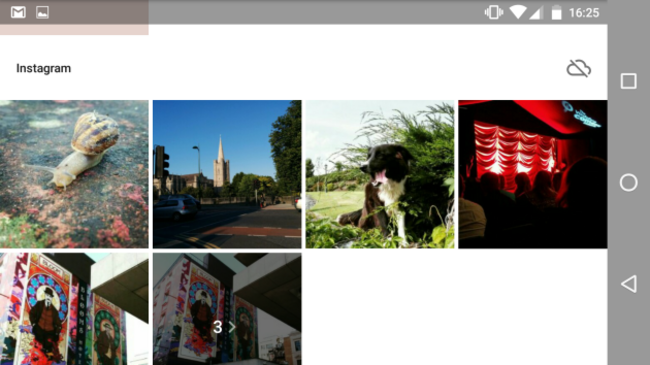
Normally your phone will save photos posted from other apps like Instagram and Twitter, but you can back up these photos too so you have them in the one place.
To do this, go into Device Folders and look at the cloud symbol at the right-hand side of each group. If you want to add another batch of photos to the mix, tap on it and it will back up photos from then on.
Sharing photos via links
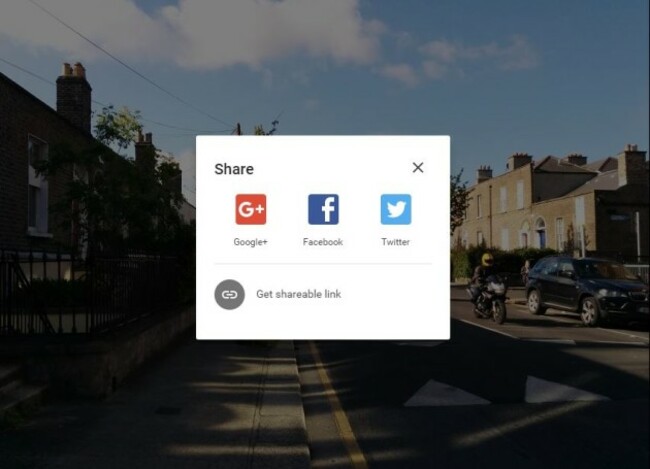
One of the handiest features of Google Photos is the ability to share photos with people just by firing over a link. when you’re viewing a photo, just click on the share icon and choose ‘Get sharable link’. This will create a temporary link in which you can share with friends.
If you do this on your phone, the link is copied automatically to your clipboard for you to paste later.
Using search
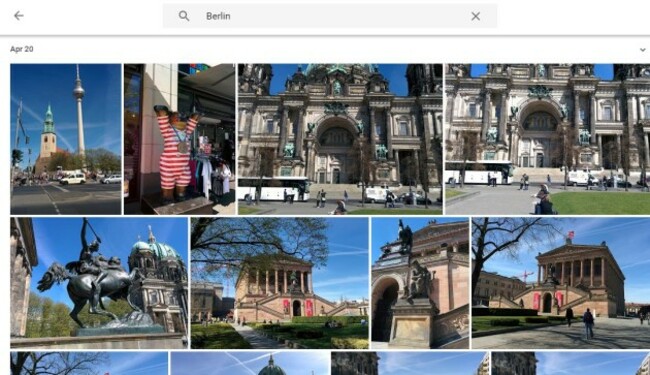
One of the best features of Google Photos is its ability to find and tag photos based on its contents. While you’re not going to have advanced search results, just typing in simple terms like ‘dog’, ‘countryside’, ‘sky’ and ‘people’ will bring up results so experiment with it. It’s not perfect, but it might surprise you.
Backup over WiFi only
As standard, photo backup is done through WiFi only, but you’re better off checking this first before you start taking photos. Go into Settings > Backup and Sync and you will come across backup settings. Check Back up photos to make sure it’s WiFi only, or change it to include mobile uploads if you feel it’s necessary.
Auto-group photos with faces
If you take a lot of photos with people in it, then you can get it to group those photos based on who’s in them. In Settings, just tick the ‘Group Similar Faces’
Remove geo-location markers
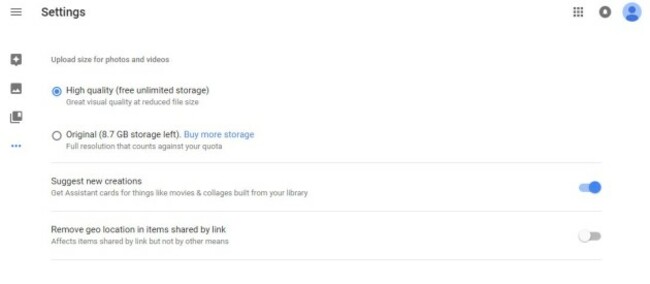
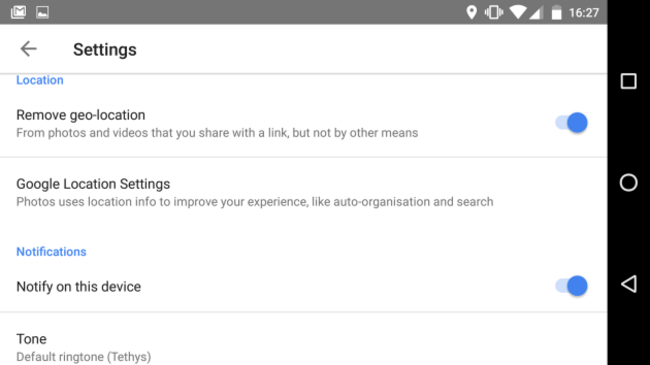
While keeping the photo location helps with grouping them together, you might not want that to be included when you share photo links with them. To scrub this data from it, go into Settings and turn on Remove geo-location in items shared by link to do just that.
Backup photos from desktop and other devices
The focus of Google Photo is for those who use smartphones for photography, but it also caters to those who have photos saved on their computer, or who take photos with a DSLR camera.
If you do so, then you can back up photos by using Google Photos Backup, a desktop app that allows you to upload photos directly.
Just be aware that for DSLR cameras, the quality is normally a jump meaning you’ll be saving them under ‘Original’ storage, which has limited space.
Create your own animations and stories
Google Assistant already suggests improvements to your photos by presenting edited versions, animations or panoramas, but you can create your own animations and stories through the mobile app. Simply tap the plus icon near the top and choose whether you want to create an animation, movie (with soundtrack), story, album or collage.
Each one has its own purpose so experiment to see what works best. For example, animations are good if you’ve taken numerous photos in quick succession like through Burst Mode.

To embed this post, copy the code below on your site













have your say