Sign in. It’s quick, free and it’s up to you.
An account is an optional way to support the work we do. Find out more.
Sign in. It’s quick, free and it’s up to you.
An account is an optional way to support the work we do. Find out more.
SOMETIMES YOU WILL get a phone call that you can’t answer for one reason or another. Usually you will either cancel it or let it ring out, depending on what it is you’re doing, but there is another option.
Most smartphones now come with a quick response option, usually pre-prepared text messages that you can fire out if needed.
It’s easy to forget about but even if you just stick with the standard responses, it can come in handy for those who might try to ring you repeatedly.
iOS
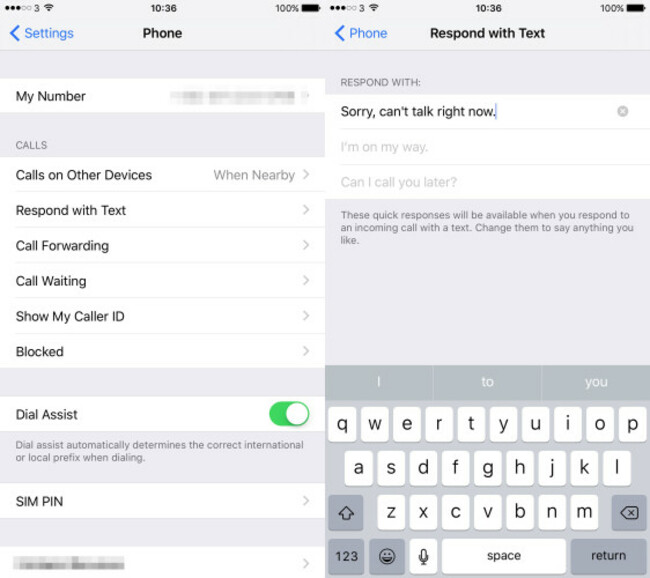
To start, go into Settings > Phone > Respond with Text. Here you will have three slots for adding in your own responses.
The default messages are Sorry, I can’t talk right now, ‘I’m on my way’ and ‘Can I call you later?’, but you can type in custom messages.
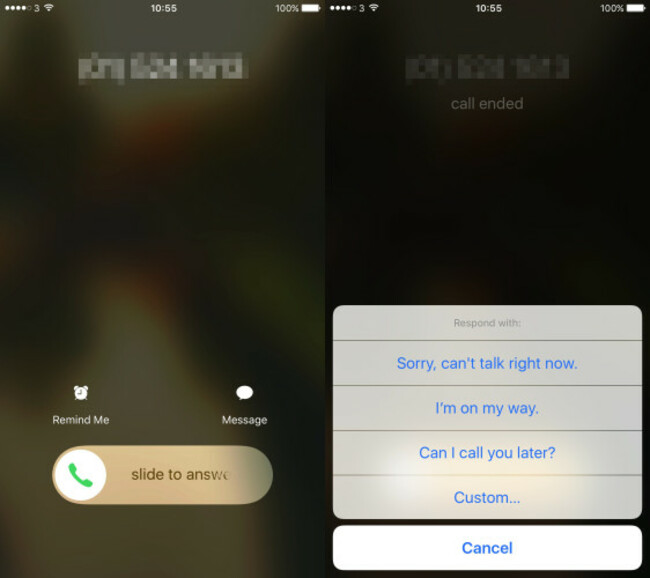
The next time you get a call, tapping the message icon just above the slider will present you with automatic messages. If they don’t work, you still have the option of writing your own text.
Android
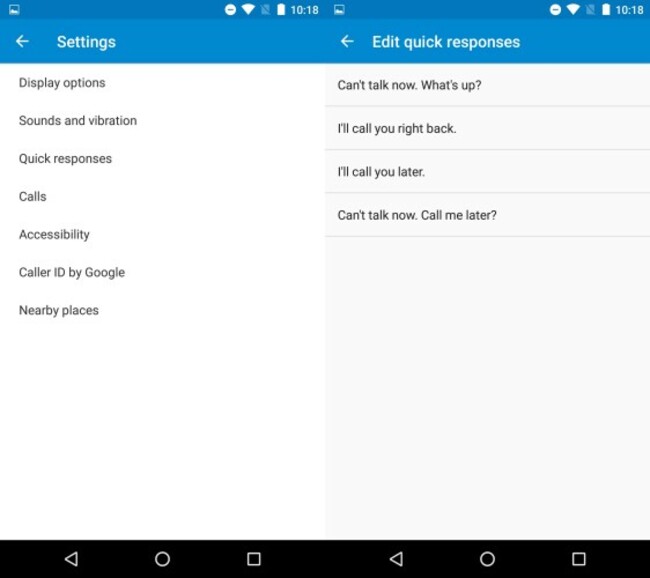
On Android, this will depend on the type of smartphone you have but in general, it’s a matter of going into phone and settings (tap the menu icon at the top right-hand corner).
One of the options here should be Quick Responses where you have four slots to use.
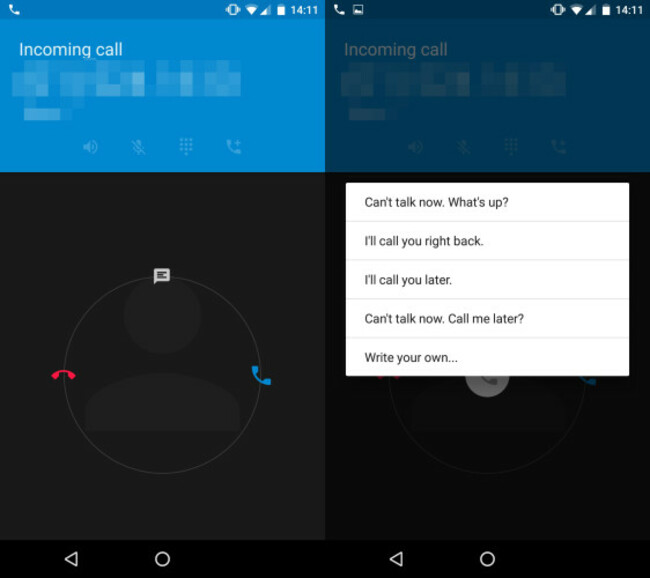
The same system works here as well. Depending on the type of device you have, you will have a message button on display or you will need to hold down on the phone icon (like below) and swipe up.
Similar to iOS, you can write your own text as well as choosing one of the pre-prepared messages.

To embed this post, copy the code below on your site















have your say