Sign in. It’s quick, free and it’s up to you.
An account is an optional way to support the work we do. Find out more.
Sign in. It’s quick, free and it’s up to you.
An account is an optional way to support the work we do. Find out more.

IF YOU USE Spotify, chances are you might just go through a few songs, maybe use Discover Weekly and put together your own playlists.
Yet there are many other features available that you might not be aware of. They’re not obvious ones to find, some are hidden in settings while others can only be found on the desktop site.
Similar to Google, you can hone down your search results so you can include a specific artist, track name, album, year and genre. If your search query contains spaces, place quotation marks so it knows it’s searching for that exact name (e.g. “OK Computer”).
artist: – search for a specific artist (e.g. artist:Radiohead)
track: – search for a specific track (e.g. track:”Karma Police”)
album: – search for a specific album (e.g. album:”OK Computer”)
year: – search for a specific year (e.g.’year:1992′ or ‘year:1992-1999′)
genre: – search for specific genre (e.g. ‘genre:indie’)
One of the earliest features on Spotify that’s easy to forget. If you don’t want anyone to know you’re listening to a particular band or playlist, just go into Settings > Social and turn it off. It usually turns it off for six hours so don’t think it’s on indefinitely.
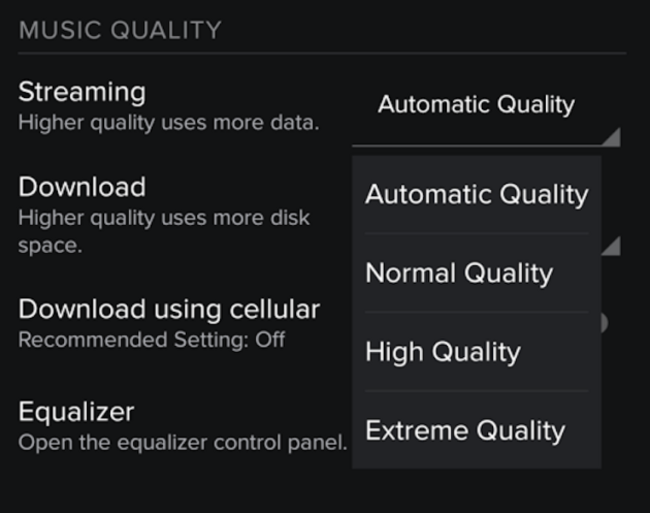
If you’re a Premium user, you can listen to or download higher quality music. In general, the type of music you play is set to automatic, but you can change it to Normal, High or Extreme if you want to. Just be aware that the higher quality audio you’re using, the more data will be used.
Downloaded music also has the same options.
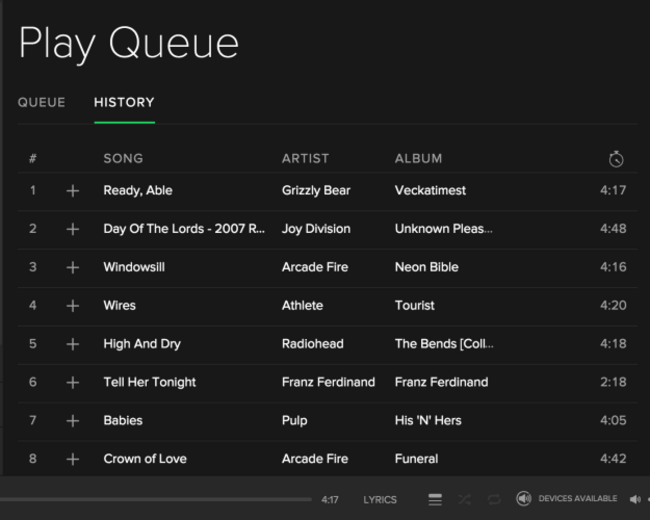
If you listened to a song from radio channel or previous Discover Weekly playlist and forgot what it was, you can find it again through your song history.
Go into the Spotify desktop app and press Play Queue (it’s the three lines symbol located beside lyrics on the music player). Here you will see what songs are coming up but also a list of songs you’ve listened to in the past.
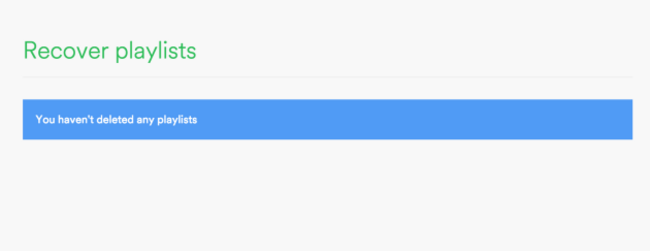
If you’ve deleted any playlists but want to recover them, you can find them by going into your account settings. Go to the desktop site (not the web player) and log in. You will see the recover playlist option on the left sidebar.
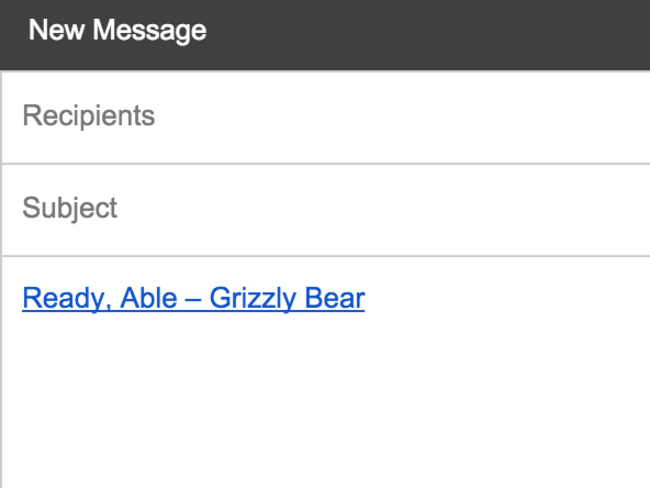
If you want to share a specific song or playlist from the desktop or web version, there’s an easier way if you know their email address. Just drag and drop it from the web player/desktop app to your email and it will be presented as a hyperlink.
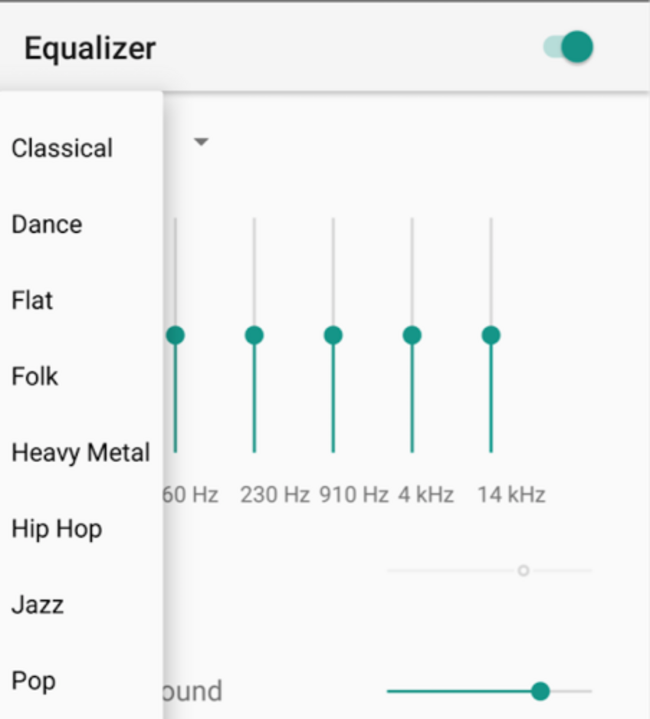
The Equaliser normally plays music at a consistent rate, but if you want, you can adjust the frequencies to allow certain instruments become louder and others quieter.
If you go into Settings > Playback > Equaliser, you will be able to choose the type of genre you listen to or make your own adjustments.
Useful if you only listen to one type of music genre.
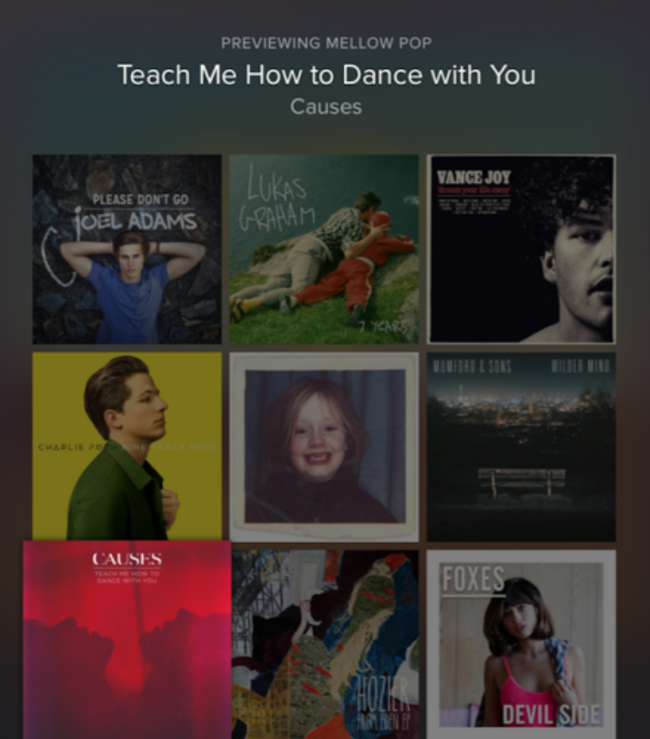
All playlists on Spotify come with general headings but what if you wanted to see what type of music is in it?
On iOS, a long press will bring up a quick selection of its songs will appear. Move your finger over any song to hear a preview of it.
On Android, a long press will just ask you if you want to follow, share or go into playlist radio.
Sure you can use Spotify through mobile but if you’re using the latter, you can speed things up by using a few shortcuts.
When different, Mac controls are placed in brackets. Otherwise swap Ctrl for Cmd.
Create new playlist Ctrl-N
Play/pause Space
Next track Ctrl-Right, (Ctrl-Cmd-Right)
Previous track Ctrl-Left (Ctrl-Cmd-Left)
Volume up Ctrl-Up
Volume down Ctrl-Down
Mute Ctrl-Shift-Down
Max volume Ctrl-Shift-Up
Show help F1 (Cmd-Shift-?)
Filter (in Songs and Playlists) Ctrl-F
Give focus to search field Ctrl-L (Cmd-Alt-F, Cmd-L)
Go back Alt-Left (Cmd-Alt-Left, Cmd-[)
Go forward Alt-Right (Cmd-Alt-Right, Cmd-])
Play selected row Enter
Preferences Ctrl-P (Cmd-,)
Logout active user Ctrl-Shift-W
Quit Alt-F4 (Cmd-Q)

To embed this post, copy the code below on your site

















have your say