Sign in. It’s quick, free and it’s up to you.
An account is an optional way to support the work we do. Find out more.
Sign in. It’s quick, free and it’s up to you.
An account is an optional way to support the work we do. Find out more.

WHENEVER YOU DOWNLOAD an app, you’re giving it permission to access certain features of your phone. Sometimes these are practical while others are ones that you might not want to share.
Yet what happens when you want to use an app, but don’t want to give it access to a specific feature? Knowing what the different app permissions mean is one thing, but if you wanted to control them individually, is it possible and if not, are there any workarounds?
iOS
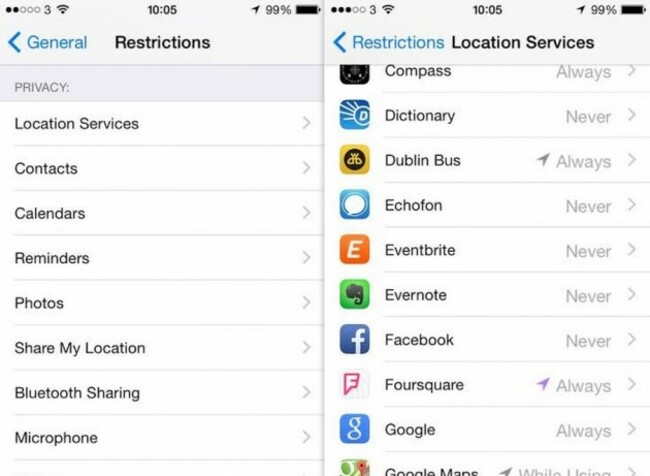
As part of the latest update, users can now control exactly what features each app has access to on iOS 8. You can access this by going into Settings, and either choosing Privacy or General > Restrictions.
Both allow you to control what apps have access to which feature so if you don’t want Twitter to have access to your location, you can switch it off here.
Just remember that certain permissions are required to work apps so if you turn one off and you actually need it (the camera for Instagram, for example), you will have to go back to Settings and switch it back on again.
What about Android and Windows Phone?
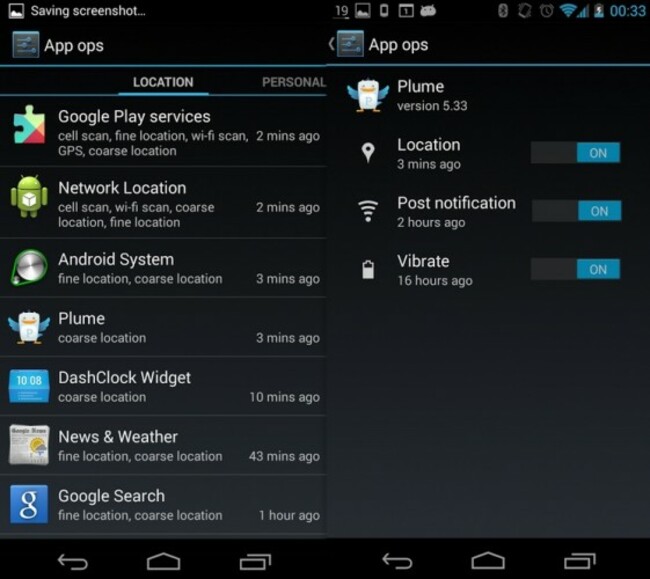
In the case of Android, things get a little difficult since you can’t control permissions directly, but if you haven’t already updated to the latest version of Android (KitKat), it might be worth looking into App Ops.
Basically, it allows you to manage each permission an app has access to, although you will need to be careful since disabling a feature could end up causing an app – or worse, your device – to crash.
If you have KitKat, then the only way you can bypass it is to root your device, or download a different Android software like Cyanogenmod, although both methods are for those who are tech-savvy.
If you decide to do either, it’s strongly recommended that you back up all of your info first before you start. If you’re not sure about what you’re doing, then leave it entirely.
Windows Phone users won’t have much luck either in this department as it also follows a similar approach. As always, it’s best to read what permissions are required from each app and determine whether it’s worth downloading or not.
Alternatively, you could check the settings for each individual app on Android and Windows Phone and find out whether you can deny access to certain features. In the case of location, it’s possible, but for the most part, what you have access to will be limited.

To embed this post, copy the code below on your site















have your say