Sign in. It’s quick, free and it’s up to you.
An account is an optional way to support the work we do. Find out more.
Sign in. It’s quick, free and it’s up to you.
An account is an optional way to support the work we do. Find out more.
WHEN YOU’RE TYPING on your phone, you have the usual feedback like popping up text and that clicking noise every time you press a key.
The latter is there to recreate the sound of typing on a normal keyboard (since you don’t have the physical feedback to rely on) but considering how many of us are used to typing on a screen, hearing this repeatedly can get on your nerves.
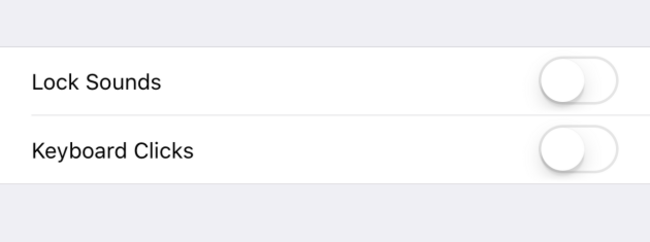
Thankfully, there is a way to disable it entirely. On iOS, go to Settings > Sounds and scroll down to the bottom. You will see an option to disable keyboard clicks as well as lock sounds.
If you want to go a step further, you customise your keyboard settings. By going to Settings > General > Keyboard, you can find more settings to play around with.
You can disable self-explanatory features like auto-correction and auto-capitalisation, but others like Enable Caps Lock prevent you from typing messages out in all caps. Turning off Character Preview gets rid of that popup animation any time you press a key.
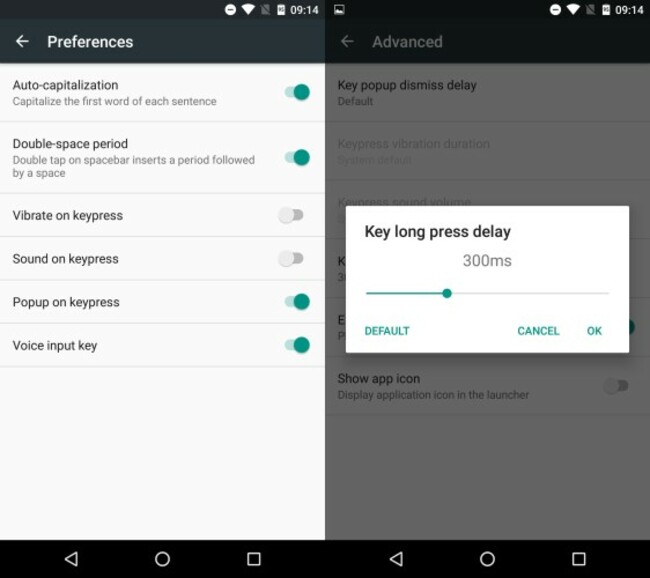
On Android, you can do the same by going into Settings > Language & input > Google Keyboard (or whatever keyboard you’ve selected) > Preferences. Here, you’ll be able to turn off vibration and sound anytime you press a key.
In the keyboard menu, you have many other options available to you here as well. The most noticeable ones are Text Correction, which is self-explanatory and Advanced, which controls the duration of a long press. You can reduce the time required before a letter switches to a different character from 700 to 100 milliseconds.

To embed this post, copy the code below on your site














have your say