Sign in. It’s quick, free and it’s up to you.
An account is an optional way to support the work we do. Find out more.
Sign in. It’s quick, free and it’s up to you.
An account is an optional way to support the work we do. Find out more.
WHILE IT MIGHT not seem that way, the accessibility option on your smartphone is probably one of the more useful settings you have access to.
Larger and smaller text might not sound like an exciting setting but if you have a large or small phone, adjusting it can make a world of difference.
It should be mentioned this will affect all first-party apps that format text in some way and web pages. It can end up changing the layout of certain apps so check your favourite apps first before you commit to it.
Also, some third-party apps have their own settings for larger/smaller text so if they aren’t changed, check its settings to see if there is a way to change it.
iOS
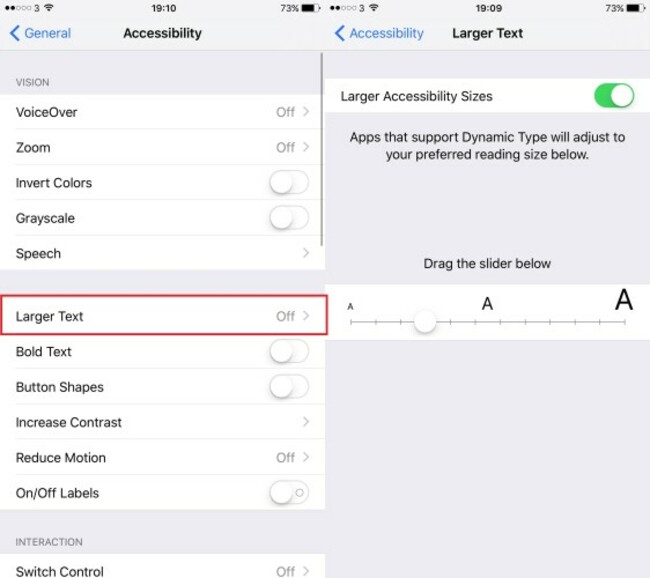
Go into General > Accessibility > Larger Text and turn it on. Here you will be provided a slider and preview of how your text will look before. The change is automatically confirmed once you change it.
Some apps like Safari aren’t affected directly, but certain features like Reader Mode are.
Android
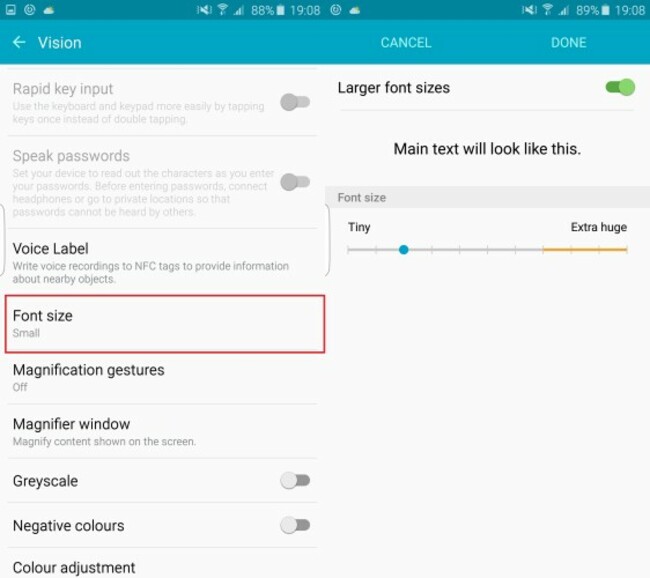
Depending on the version you have, you will either have a sliding scale similar to iOS, or just an option to turn on larger text.
Going into Settings > Accessibility will bring up one of those two options. If you have ‘large text’, then it’s just a tap to activate. Others will provide you with a slider for you to adjust, and a preview so you know how it will look.
Windows Phone
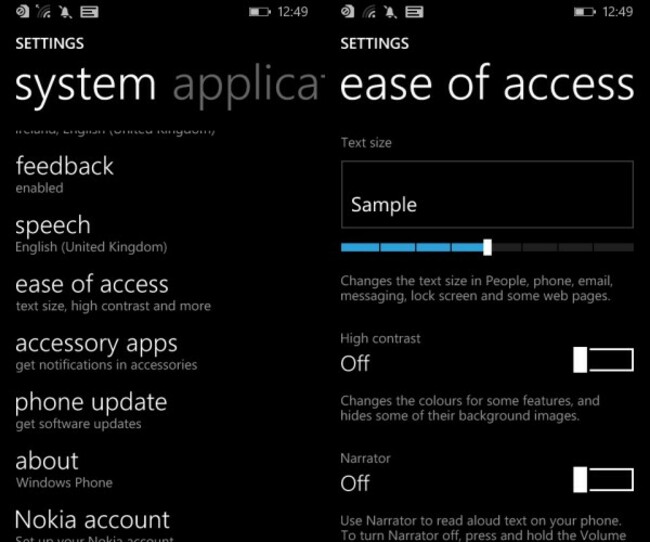
In Settings, you will have to scroll down to ease of access (its location will depend on the version of Windows 8.1 you’re using).
By default, it’s at its lowest setting but there are nine different sizes for you to choose from.

To embed this post, copy the code below on your site













have your say